
Frequently asked questions
Everything you need to know about ordering, artwork, shipping, and getting the most out of Bolt Printing.
How Do I Reorder Custom T-Shirts From a Previous Order?
Need to reorder custom T-shirts, embroidered apparel, or other personalized products from a previous Bolt Printing purchase? You don't have to recreate your artwork or start your design from scratch.
Bolt Printing's Customer Center makes it easy to reorder custom apparel using the product and design from a completed order. Whether you're restocking company shirts, ordering more school apparel, or preparing for another event, follow these five simple steps to place your reorder.
Quick Answer
To reorder custom T-shirts from Bolt Printing, visit the Customer Center and select Reorder. Enter your previous Order Number and Ship-To ZIP Code, choose the quantities you need, and click Secure Checkout to place your new order using your previous design.
Important: Reordering Creates a New Order
The Reorder feature is intended for placing a brand-new order using a previously completed order. It does not add products to an existing order. Using Reorder creates a separate order with a separate charge.
If you recently placed an order and want to add more items to it, please read our Adding Items to an Existing Order guide or call us at (888) 909-2658.
How Do I Reorder Custom T-Shirts From a Previous Order?
Reordering is a convenient way to purchase additional custom apparel without designing everything again. You can look up your previous order through the Customer Center and select the quantities needed for your new purchase.
Follow these five steps to complete your reorder.
Step 1: Open the Customer Center
Visit the Bolt Printing website and locate Customer Center in the upper-right corner.
Click Customer Center to access the available order management tools.

Image 1: Click Customer Center to begin reordering from a previous purchase.
Step 2: Select Reorder
Once the Customer Center menu opens, find the option labeled Reorder.
Click Reorder to open the previous order lookup tool.
This feature allows you to access a previously purchased product and design without starting a new design from scratch.

Image 2: Select Reorder from the Customer Center menu.
Step 3: Enter Your Previous Order Details
Next, enter the information associated with the order you'd like to reorder.
You'll need:
- Previous Order Number: The order number from your original Bolt Printing purchase.
- Ship-To ZIP Code: The ZIP code used for the shipping address on your previous order.
Enter the requested details and follow the on-screen instructions to retrieve your previous order.

Image 3: Enter your previous order information to retrieve your custom apparel design.
Helpful Tip: Your previous order number can usually be found in your Bolt Printing confirmation email. Make sure you're using the ZIP code from the original shipping address, not your billing ZIP code if they're different.
Step 4: Enter Your New Order Quantities
Once your previous order has been located, you'll be able to select the quantities needed for your new purchase.
Enter the number of items you want to reorder in the available size and quantity fields.
You don't have to order the same quantity as your original purchase. Choose the quantities needed for your new order using the available options.
Before continuing, carefully review the product information, selected sizes, and quantities.

Image 4: Enter the quantities you want to purchase for your new custom apparel order.
Helpful Tip: Reordering is useful when you need more staff shirts, school apparel, team uniforms, or event T-shirts featuring a design you've already purchased.
Step 5: Click Secure Checkout
When you're satisfied with your new order quantities, click the button labeled Secure Checkout.
You'll continue through Bolt Printing's checkout process to complete your reorder.
Review your shipping address, contact information, available delivery options, and payment details before submitting the order.
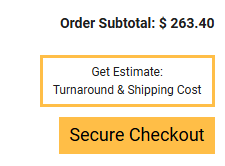
Image 5: Click Secure Checkout to complete your new order.
Important: Completing Secure Checkout for a reorder creates a separate purchase with its own charge. It does not modify or add items to your previous order.
Do I Need an Account to Reorder Custom T-Shirts?
No! You can reorder from a previous Bolt Printing purchase without creating an account.
Even if you originally placed your order using guest checkout, you can access the Reorder feature in the Customer Center.
All you need is your previous order number and the shipping ZIP code associated with that purchase.
Reordering as a guest does not automatically transfer your personal account information to the new purchase. Review and enter the appropriate contact, shipping, and payment details during checkout.
Can I Change the Quantity When Reordering Custom Apparel?
Yes! The Reorder process lets you enter quantities for your new order.
For example, if you previously ordered custom T-shirts for your business and need more shirts for new employees, you can enter the additional sizes and quantities you need.
Your new order is a separate purchase, so review the displayed order information and current pricing before checking out.
What's the Difference Between Reordering and Adding Items to an Existing Order?
These two options serve different purposes, and choosing the correct one is important.
- Reordering: Use this when you want to place a new order using the product and design from a previous completed purchase. A reorder generates a separate transaction and charge.
- Adding Items to an Existing Order: Use this when you've recently placed an order and want to request additional items before that order moves too far through processing or production.
If you've just placed your order and realized you need more items, do not use the Reorder feature.
Instead, review our Adding Items to an Existing Order instructions or contact our team at (888) 909-2658.
Whether additional items can be accommodated depends on your order's current status.
What If I Can't Find My Previous Order?
If your previous order doesn't appear when using the Reorder feature, first double-check the information you're entering.
Try these troubleshooting steps:
- Verify Your Order Number: Check your original Bolt Printing order confirmation email for the correct number.
- Check the Shipping ZIP Code: Make sure you're entering the ZIP code used on the previous order.
- Look for Typing Errors: Double-check the order information you've entered.
- Contact Customer Service: If you still can't locate your order, our team can help you troubleshoot the issue.
Helpful Tip: Keep your previous order confirmation emails for easy reference. Your order number is useful for reordering, checking order status, reviewing proofs, and other Customer Center features.
Will My Reorder Go Through Artwork Approval?
Bolt Printing uses an artwork proof approval process before custom apparel moves into production.
When your new order's proof is ready, review the artwork, placement, dimensions, and colors carefully.
Once you approve your proof, the order can move into production. Changes cannot be made after approval.
For more information, visit our How to Review and Approve Your Artwork Proof guide.
Still Have Questions? We're Here to Help.
Need help reordering custom T-shirts, finding a previous purchase, updating quantities, or determining whether you should reorder or add items to an existing order? Our team is happy to help.
Phone: (888) 909-2658
Email: hello@boltprinting.com
Customer service hours: Monday-Friday, 9:00 AM-6:00 PM Eastern Time. Please include your previous order number when contacting us about a reorder.
Still have questions?
Our support team responds within a few hours during business days. We're happy to help with quotes, custom jobs, or artwork questions.
Or call 888-909-2658, Mon–Fri 9 am – 6 pm ET.