
 Lana_C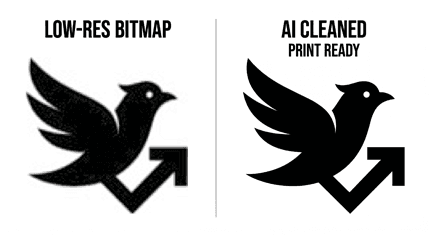
Why Vector Artwork Makes Your Design Shine
One of our customers had this brilliant design (see the “No Diving” artwork below). The idea was perfect — but the file itself wasn’t. It was saved as a bitmap image, which meant the edges looked fuzzy and blurry when zoomed in.
Original File (Bitmap):
- Made of tiny dots (pixels)
- Blurry edges when zoomed in
- Sometimes “okay,” but not always great for printing
Clean Vector File:
- Made of shapes and lines
- Crisp, flawless edges at any size
- Gives us more control over colors for brighter, more affordable prints
Why It Matters:
Your design is the heart of your custom print. By starting with vector artwork, you’ll always get the sharpest, most professional result.
And don’t worry — if your file isn’t strong enough for printing, we’ll let you know before it goes to press. Sometimes a bitmap is fine, but when quality really counts, vector wins every time.
Can AI Fix Low-Resolution Artwork?
AI tools are making it easier than ever to improve low-resolution artwork. In many cases, we can take a blurry image, clean it up, and place it on a white background so it’s usable for printing.
We’ve tested a few different AI tools, and Gemini has been the most consistent for this type of cleanup, especially for simple, single-color artwork. But with the new updates to chatGPT we are seeing great results too. Our suggestion, try both if you can.
In many cases, we can take a blurry file, sharpen it, remove the background, and get it very close to print-ready.
This works best for bold graphics with solid shapes. Fine details, small text, or complex artwork can still be tricky, so vector files are still the gold standard.
Important Tip About Transparent Files
AI tools don’t always handle transparent backgrounds correctly. If you upload a PNG with transparency, parts of your design may disappear or lose detail.
For best results, place your design on a white background before uploading. A quick way to do this is to add a white layer behind your artwork or even take a clean screenshot.
This helps the AI clearly see all elements and produce a more accurate result.
Don’t worry—the white background will not be printed. We remove that during the proof process, so it won’t affect your final product.
Also, converting your design to solid black is just part of the clean-up process. Your ink color can still be changed during the proof stage. This step simply gives us a clean, consistent file to work with.
Try These AI Prompts:
Print Ready (our favorite)
Enhance this image for printing. Convert it into a clean, solid black design on a pure white background. Remove all blur, anti-aliasing, and gray tones so the artwork is made of only true black and white. Sharpen edges and keep shapes accurate without adding new details.
Basic Clean-Up Prompt
Clean up this image and improve its resolution. Convert the artwork into a crisp, high-contrast black design on a pure white background. Remove any blur, noise, or gray pixels so edges are sharp and solid. Preserve the original shapes exactly—do not add or change details.
Simplify a Messy Image
Simplify and clean this image into a bold, single-color black design on a white background. Remove noise, shading, and unnecessary details. Make all lines and shapes solid and crisp while keeping the overall design as close to the original as possible.
Remove Background + Clean
Remove the background and place this design on a pure white background. Convert all artwork to solid black with clean, sharp edges. Eliminate any blur, shadows, or color variations.
Want more design tips? Check out our 5 Custom T-Shirt Design Tips